Overview & preparation
Ordering food: what to expect
You may encounter QR menus, counter ordering or table service. English menus and app interfaces are not guaranteed.
Prepare for the setting
- ✓Have a translation tool and your dietary needs written down.
- ✓Ordering and payment may happen together or at different points in the meal.
- ✓A QR menu does not guarantee support for every account or payment method.
Safety is always free
- ✓For a severe allergy, do not rely on automated translation alone. If ingredients cannot be confirmed safely, do not eat the dish.
- ✓For a medical emergency, call 120. Do not wait to unlock a guide.
Free sample · From the complete guide
Try this part of your Hangzhou journey
Order food in Hangzhou: the complete 10-step flow
Follow this in order. Stop whenever the screen shows a different table, branch, merchant or amount.
Sit down and identify how this restaurant takes orders
Look for a table QR, paper menu, menu board, cashier or server. Ask 可以在这里点餐吗? if unsure. If the screen says 排队/取号, you are joining a queue—not ordering food.
Check the table code, menu or counter
For a table code, match 桌号 to the physical table number. For counter service, note whether you must choose 堂食 (dine in) or 打包/外带 (takeaway). For a paper menu, keep the Chinese name visible while translating.
Open the menu with the right tool
WeChat logo or mini-program code: WeChat + → Scan. Alipay logo: Alipay Scan. A normal https QR can open with the phone camera. These routes are not interchangeable; if the wrong scanner says it cannot identify the code, use the app named beside it.
Choose dishes and confirm the portion
Tap + or point to the dish. Check 份 (portion), 位 (per person), 笼 (basket), 大/小份 (large/small), quantity and add-ons. For a shared dish or seasonal seafood, ask how many people it serves and confirm the listed price before submitting.
Confirm spice and dietary restrictions with a person
Use the cards below before the kitchen starts. For an allergy, say this is medical and ask staff to confirm with the kitchen, including sauce, stock, oil and shared equipment. A QR checkbox is not enough for a severe allergy.
Review the basket and submit once
Check branch, table, item list, quantity, options and total. 提交订单/下单 means submit. Tap once, wait for an order number or status, and screenshot it. If nothing changes, ask staff before tapping again.
Find out whether payment is now or later
去支付/付款 means pay now. If the order status says 已下单/制作中, the kitchen has the order and payment may be later. Ask 现在付款,还是吃完付款? if the screen is unclear.
Ask for the bill when payment is after the meal
Show 请给我看账单。 or say 买单/结账. Staff may bring a bill, direct you to the cashier or show a merchant QR. Check table number, dishes, quantity, tea/service charges and any deposit or voucher already applied.
Pay using the method the restaurant confirms
To scan the merchant: use Alipay or WeChat Pay Scan, verify merchant and amount, then approve. If the cashier scans you: open your payment code and show only that screen. Cash and cards may be accepted, but ask first. Never reveal a PIN, SMS code or phone unlock code.
Confirm both payment and order are complete
Check 支付成功/Payment completed, merchant name, amount and time. Keep the transaction detail. If you paid before food arrived, also keep the order number. Do not pay again because one screen is slow; show the existing transaction to staff first.
Watch for this付款/买单 is payment, 点餐/下单 is ordering, and 排队/取号 is queueing. A successful payment does not always prove that a food order reached the kitchen.
If this does not workShow: 我不会用这个点餐系统。请给我纸质菜单,或者帮我录入订单。 Point to the dish photo/name and quantity, then stay with staff until they confirm the order was entered.
Visual example · Visual guide: what to look for at each point
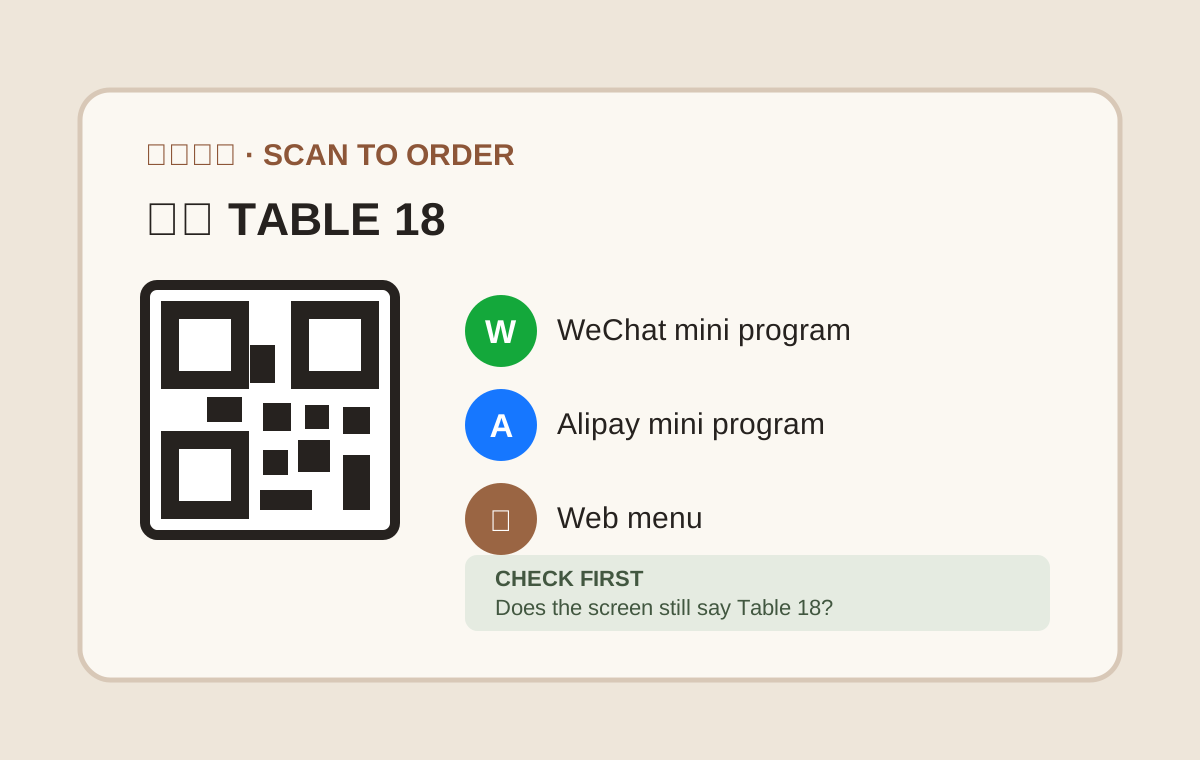
Tap an image to enlarge the original.
About this excerpt
Selected from Order food in Hangzhou, from menu to paid bill. Guide updated October 5, 2026. App labels and local arrangements can change.
Inside the Full Guide
Included in the Full Hangzhou Guide, together with this city’s Quick Cards.
- Order food in Hangzhou, from menu to paid bill
- Related Quick Cards
All three journey stages
Full Hangzhou Guide
$39 / city · One-time purchase
All Hangzhou guides, step-by-step instructions, troubleshooting, backup options and Quick Cards. Other cities are sold separately.
Use it on your phone and one other device. Emergency help is always free.
Access & purchase details
Personal access tied to your account, on up to 2 registered browsers. Sharing a link does not share your purchased guide. You may show and screenshot Quick Cards for your own trip.
No downloadable offline pack is available. Live human support is not included. Save stores a link on this browser, not an offline copy.
Login sessions last up to 30 days. Sign in again with your email to recover your guides. Each browser counts separately; you can manage registered browsers in your account.
Checkout is not live. Purchase and refund terms will be published before payments open. For an access problem, use Help; do not buy again.